How to create a QR code for a link and test it before printing
Prepare the URL, choose the file format, preserve clear space, and test the QR code in the final layout.
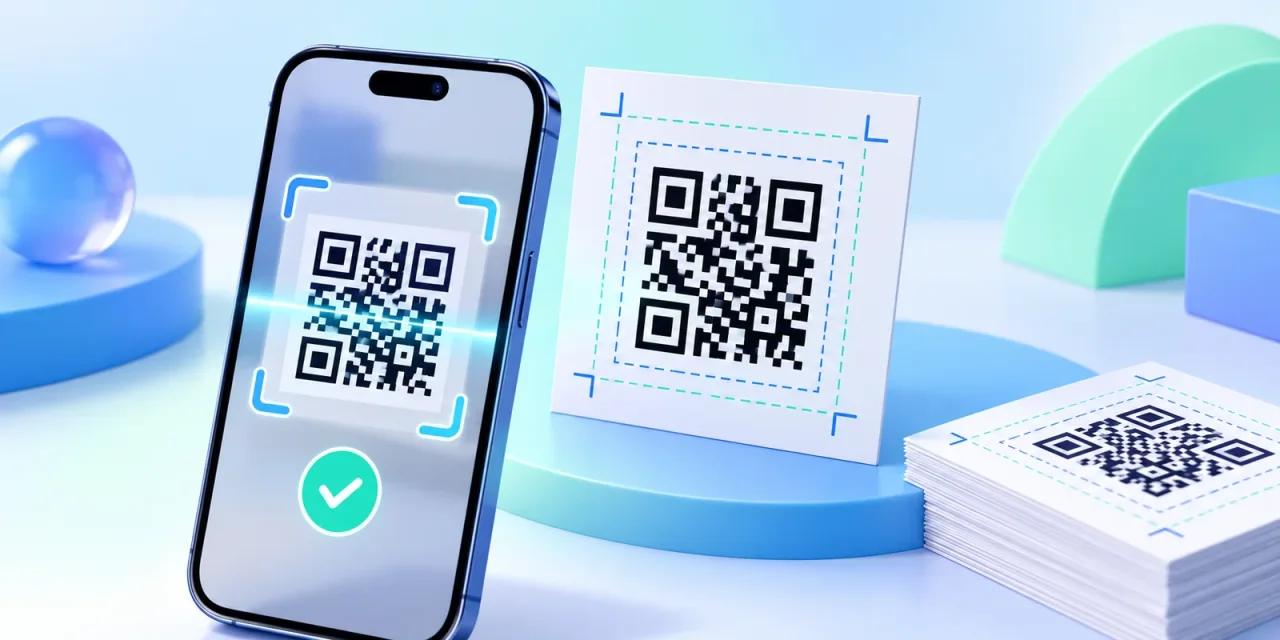
The worst QR code mistake appears after a layout is published or a print run is finished. The code may point to an old page, disappear into the background, or fail at the chosen size. A useful check starts with the final URL and ends with the code inside the finished design.
Prepare the final destination
Open the URL manually on a phone and confirm that the page works without an internal network or login. Follow any redirects to the final page. Printed material needs a stable address that will remain available after the design is distributed.
Generate the code and choose a file format
Paste the link into the generator and begin with a dark code on a light background. PNG works well in documents, presentations, and web posts. SVG is better for print because it can scale without blurring the module edges.
- Do not crop the clear margin around the code.
- Do not place the code over a photo or busy texture.
- Avoid foreground and background colors with similar brightness.
- Do not enlarge a raster PNG beyond its original resolution.
Test the code in the final layout
A code that worked in the generator may fail after resizing, cropping, or decoration. Export the finished layout and test that file. For print, create a sample at the real physical size instead of scanning an enlarged version on a monitor.
Scan with two different devices
Scan from the expected distance with at least two phones. Check the address preview before opening the page. Test a poster from normal viewing distance and test packaging under ordinary light, including any curve in the surface.
QR code generator
Create QR codes in your chosen size and color without uploading data.
Open the tool